
Data in Google Sheets
The attendance sheet lives in your company's Google account, one tab per month, with duplicate clock-ins removed.
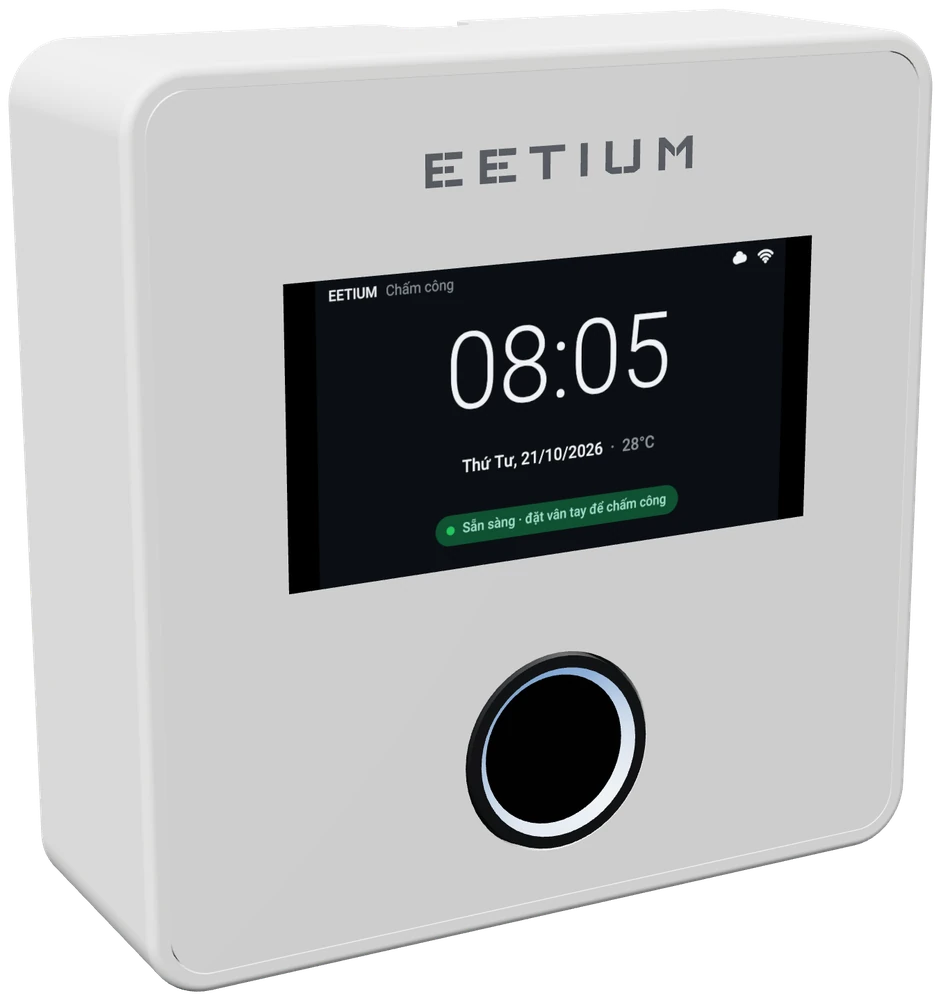
Staff simply place a finger. Each clock-in is sent over WiFi to your company's own Google Sheet, with no software to install and no server to rent.
2.6-inch colour screen · WiFi · Several clocks, one attendance sheet · Managed in a web browser
Contact us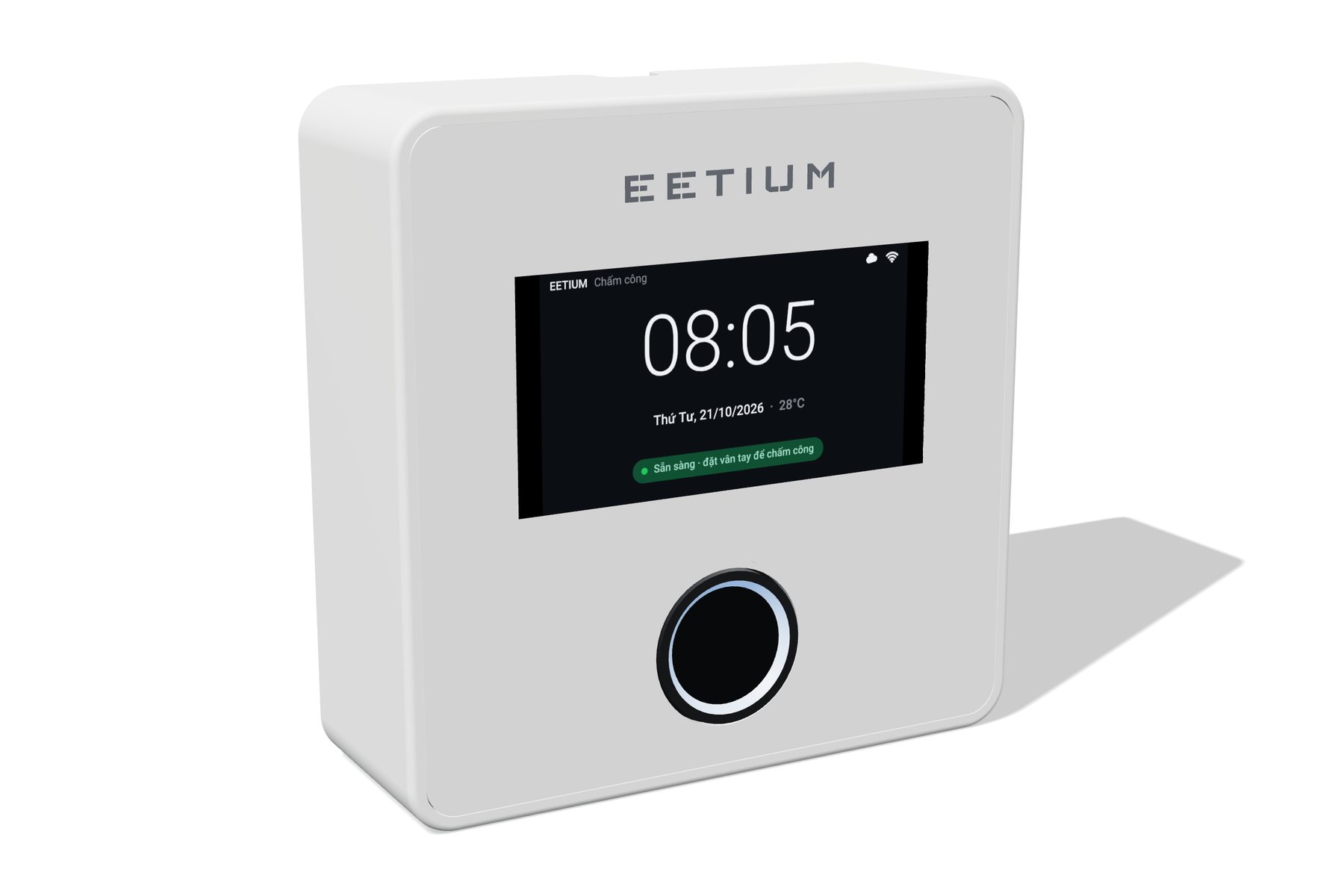
1 – Add staff and enrol their fingerprints on the clock's web page, or import the whole list from Excel.
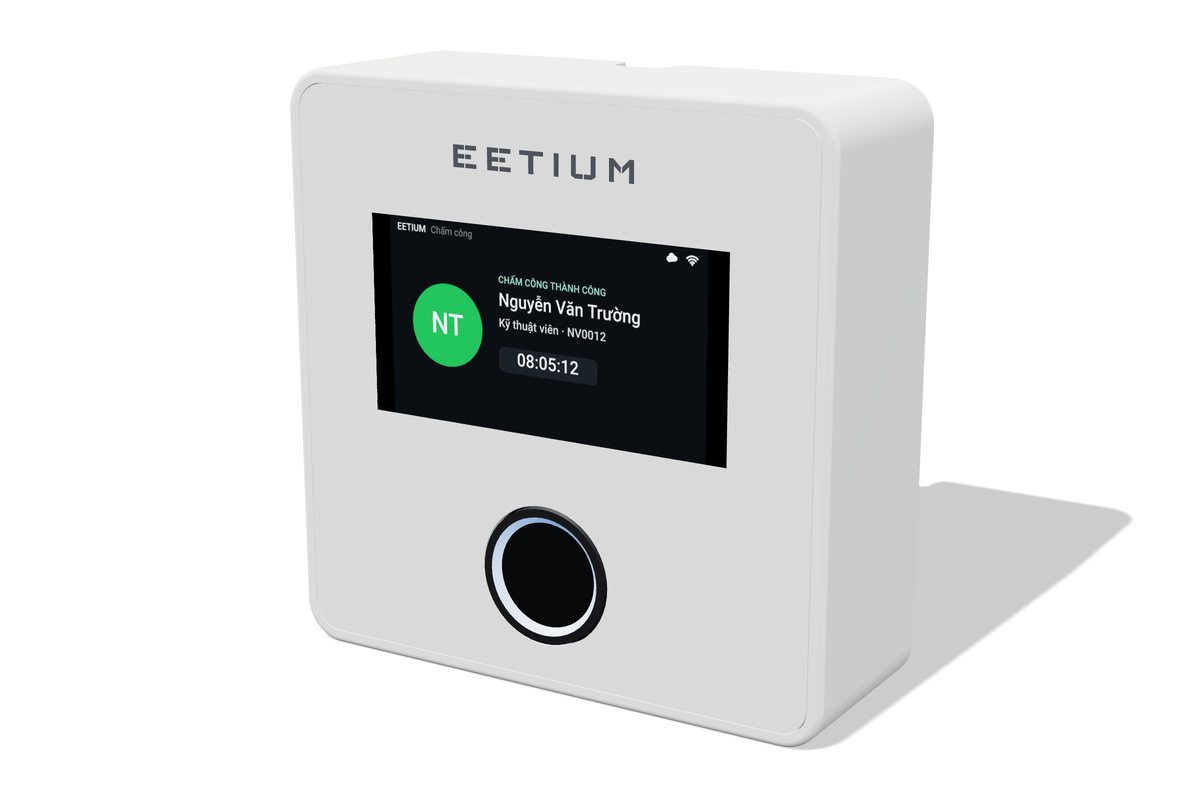
2 – Staff place a finger on the sensor; the screen shows their name, staff ID and the time.
3 – Each clock-in is written to the Google Sheet: one row per person per day, with every in and out.
The attendance sheet lives in your company's Google account, one tab per month, with duplicate clock-ins removed.
Clock-ins are stored in the device and sent to the Sheet once the connection is back.
Clocks at different entrances or branches write to the same Google Sheet.
Add and edit staff, import lists from Excel and export monthly data as CSV.
Press the button on the clock, scan the QR code on the screen, then choose the WiFi network.
Built-in real-time clock, synchronised over the network.
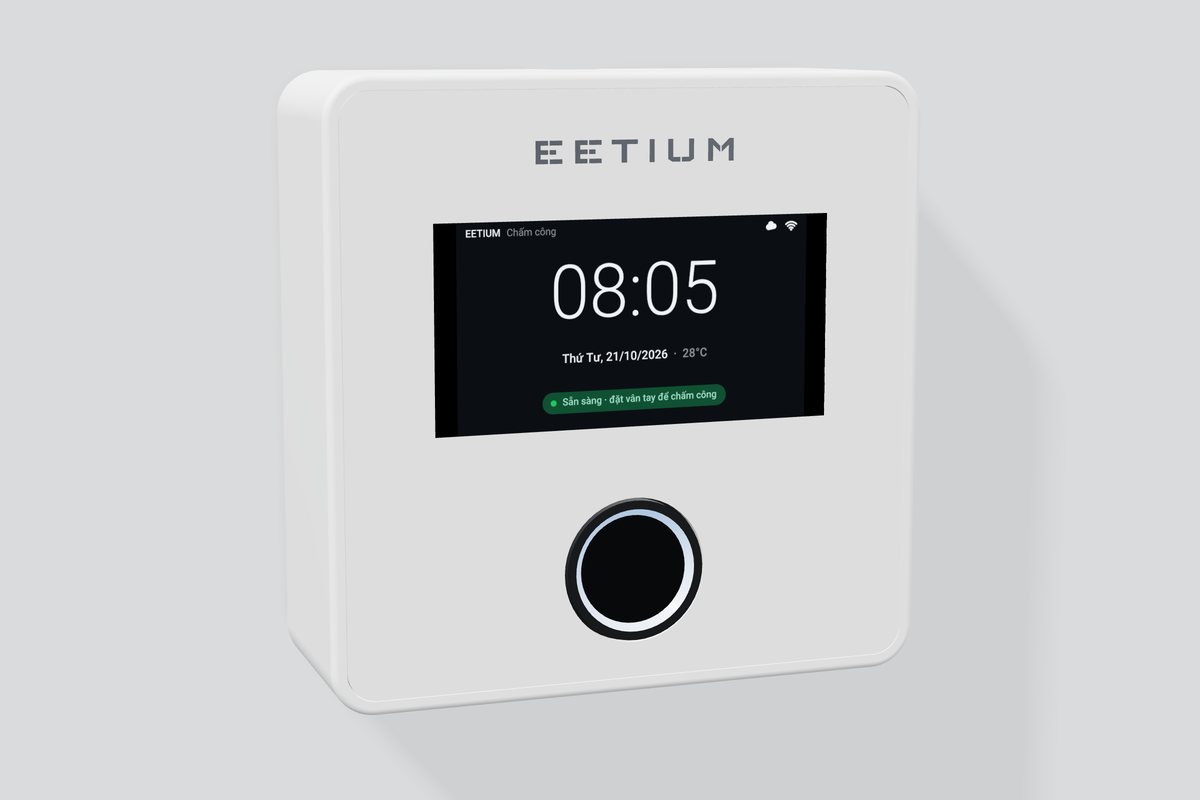
Mounts on the wall next to the entrance. It needs only power and WiFi coverage, with no network cable.
| Authentication | Fingerprint, capacitive sensor with indicator light |
|---|---|
| Display | 2.6-inch colour LCD, 480 × 272 |
| Connectivity | WiFi 2.4 GHz |
| Data | Your company's Google Sheets; monthly CSV export |
| Management | Web page on the device; staff list import from Excel |
| Clock | RTC, synchronised over the network |
| Feedback | Screen, buzzer, sensor light |
| Mounting | Wall |
| Dimensions | 86 × 85 × 31 mm |